Wired Gaming Headset w/ Mic: Setup, Sound & Chat Tips
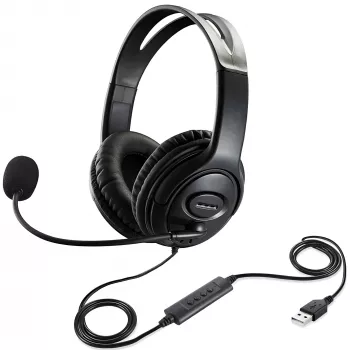
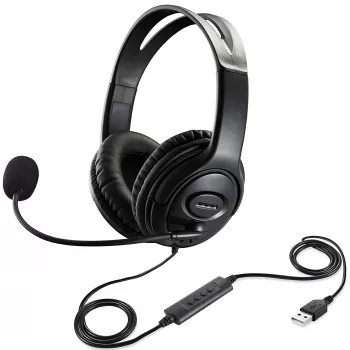
Wired Gaming Headset with Microphone: Plug-In Audio and Clear Team Chat
A wired gaming headset is a straightforward way to get consistent sound and reliable voice chat without worrying about battery life or wireless dropouts. This budget-friendly option focuses on the essentials: comfortable wear for longer sessions, immersive audio for footsteps and effects, and a microphone that keeps callouts understandable. Because it connects by cable, setup is typically fast—plug in, select the correct input/output on the device, and start playing. The sections below break down what to expect from a wired headset, how to get the best sound and mic clarity on PC and consoles, and which features matter most for competitive play, casual co-op, or everyday voice calls. For more guidance, see Antlion Audio ModMic 5 (Review). For further reading, see Gaming Headsets, Headphones: Wireless, Wired, Immersive ….
What a Wired Headset Does Well
- Stable connection: A cable keeps audio steady with a low chance of interference compared with many wireless setups.
- No charging required: Performance stays consistent from the first match to the last—no battery anxiety mid-raid.
- Simple troubleshooting: Most issues come down to port selection, cable seating, or device settings.
- Great for shared spaces: A microphone keeps communication clear without cranking speaker volume for everyone nearby.
Product Snapshot
- Product: Wired Gaming Headset with Microphone
- Price point: An accessible option for everyday gaming voice chat and general listening.
- Best for: Players who want plug-in convenience for PC, console controllers, or laptops (depending on the device’s audio ports).
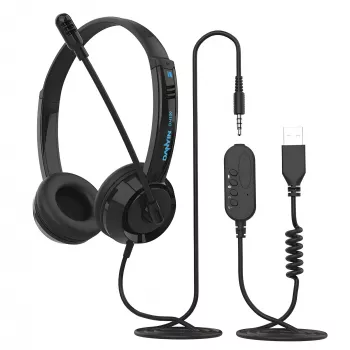
- What to check before buying: The type of headphone jack on the target device (single combo port vs separate headphone/mic ports) and whether an adapter is needed.
At-a-glance checklist for compatibility
| Device | What to check | Common fix if it doesn’t work |
|---|---|---|
| PC (tower) | Separate green (audio out) and pink (mic) ports vs single combo jack | Use a TRRS-to-dual TRS splitter if the PC has separate ports |
| Laptop | Often a single combo jack | Select the headset as input/output in sound settings |
| PlayStation controller | 3.5 mm headset port on controller | Raise controller headset volume and set output to headphones in console settings |
| Xbox controller | 3.5 mm headset port on newer controllers | Confirm party chat output and mic privacy permissions |
Comfort and Fit for Longer Sessions
- Headband pressure: A snug fit helps keep the seal for fuller sound, but too much clamp can cause fatigue—adjust the band so it sits evenly on the crown of the head rather than pressing forward on the forehead.
- Ear pad feel: Softer pads can reduce hot spots. If heat builds during longer play sessions, a short break helps your ears cool and can also reduce “clamp fatigue.”
- Weight and cable pull: Route the cable behind your shoulder or through a desk cable guide so it doesn’t tug on one earcup when you turn your head.
- Glasses-friendly tip: Slightly loosen the fit and position your temple arms so they don’t pinch under the pad edge—small adjustments can make a big difference.
Sound Performance: Hearing What Matters in Games
Microphone Clarity for Party Chat and Calls
- Placement matters: Keep the mic a couple of finger-widths from the corner of your mouth. Off-center placement helps reduce breath noise and plosives without making you sound distant.
- Consistency: Speak at a steady distance and avoid rubbing the cable or touching inline controls while talking—handling noise can travel straight into the mic.
- Noise control: Lower mic gain if background sound is getting picked up. When available, enable noise suppression or voice processing inside your chat app.
- Testing routine: Record a 10-second sample, listen for hiss or clipping, then adjust input level until speech is clear without distortion. Discord’s troubleshooting steps can help isolate device vs. settings issues (Discord Support: Voice and Video Troubleshooting).
Setup on PC and Consoles
- PC setup: Set the headset as the default output device and select it as the default input device in system sound settings. If your desktop has separate headphone/mic ports, use the correct splitter so both audio and mic work.
- Console setup: Confirm audio output is routed to the controller headset, and verify voice chat is enabled in both game settings and system privacy settings. If chat is acting up, the official support pages can walk through common fixes (Xbox Support, PlayStation Support).
- Splitter needs: Many laptops and controllers use a single combo port (one plug for both). Many desktops use two separate ports (one for headphones, one for mic).
- Common quick fixes: Reseat the plug fully (partial insertion is common), try another port, disable “exclusive mode” in PC sound settings if apps are fighting over the device, and check the in-game voice chat toggle.
Care, Durability, and Daily Use
Who This Headset Fits Best
Shop In-Stock Picks
- Wired Gaming Headset with Microphone (in stock)
- Your Smart Guide to Investing in Rural Real Estate | Digital eBook (in stock)
FAQ
Will a wired headset work on both PC and console?
Usually yes, but it depends on the device’s audio ports. Many controllers and laptops accept a single combo plug, while desktop PCs may require a splitter for separate headphone and mic jacks.
Why can teammates hear me, but I can’t hear them (or game audio)?
Check that the correct output device is selected and that headset volume is turned up in system or controller settings. Also confirm the plug is fully seated and the game’s voice/chat output settings aren’t muted or routed elsewhere.
How can microphone sound be improved without extra equipment?
Move the mic slightly off-center from your mouth, reduce input gain to prevent clipping, and enable noise suppression in your chat app if available. Lowering background noise sources like fans can also make speech clearer.













Leave a comment