Connect a Bluetooth Keyboard to Your PC (Windows & Mac)
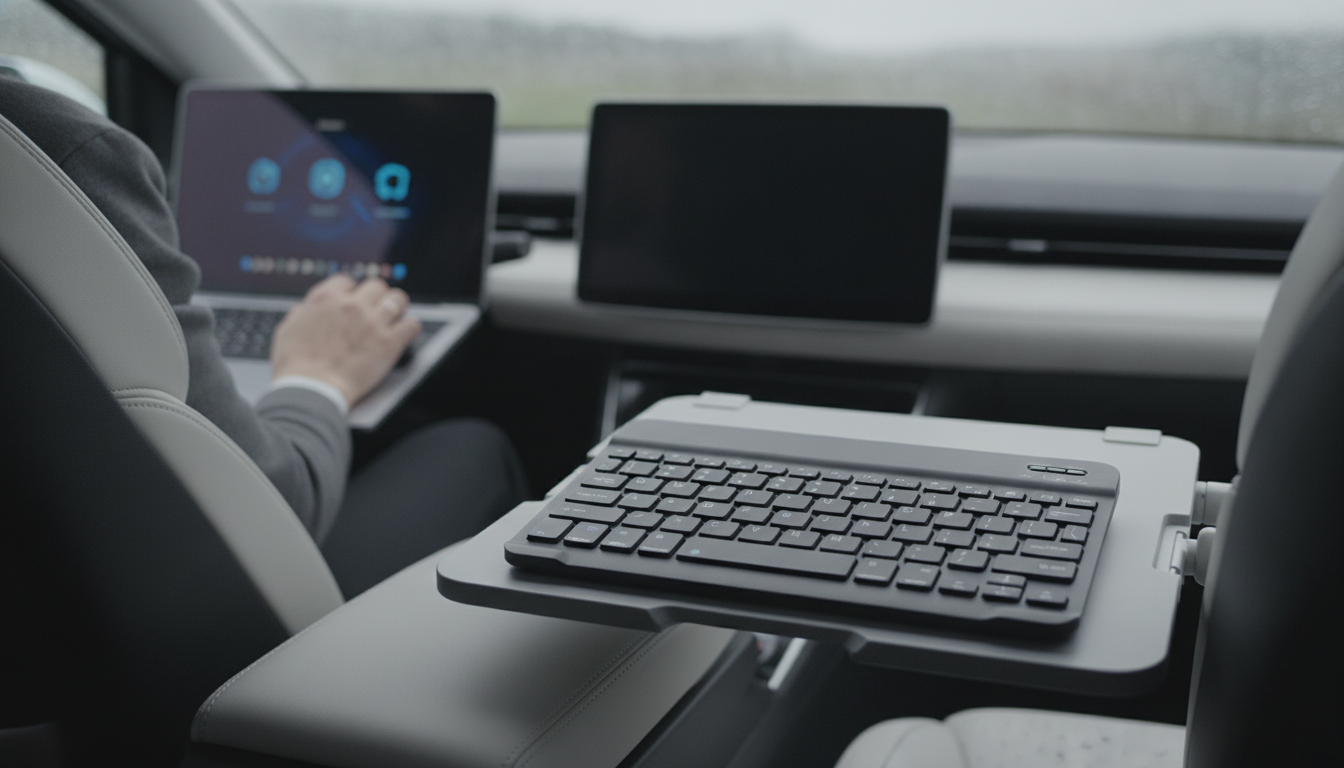
Can a PC connect to a Bluetooth keyboard?
Yes. A PC can connect to a Bluetooth keyboard as long as the computer has Bluetooth built in or you add it with a small USB Bluetooth adapter (dongle). Once Bluetooth is available, pairing a keyboard is usually a quick one-time setup, and the keyboard will reconnect automatically after that.
How to connect a Bluetooth keyboard to a Windows PC
Start by putting the keyboard into pairing mode (often a dedicated Bluetooth button or a key combo—check the keyboard’s manual). On your PC, open Settings > Bluetooth & devices, turn Bluetooth on, then choose Add device > Bluetooth. Select the keyboard when it appears, and if Windows shows a pairing code, type it on the keyboard and press Enter.
If your desktop doesn’t have Bluetooth, plug in a USB Bluetooth adapter first. Windows typically installs drivers automatically; then repeat the steps above.
How to connect a Bluetooth keyboard to a Mac
On macOS, go to System Settings (or System Preferences) > Bluetooth, turn Bluetooth on, and select the keyboard from the list. If prompted, enter the pairing code using the keyboard and press Return. macOS may also run a quick keyboard identification step the first time you connect.
Common issues and quick fixes
If the keyboard won’t pair, charge or replace the batteries, move the keyboard closer, and make sure it isn’t already connected to another device (many multi-device keyboards require selecting the correct channel). Removing the device and re-adding it can also help. For USB adapters, try a different port and keep the dongle away from USB 3.0 interference sources when possible.
For more details on small, travel-friendly options and pairing tips across devices, see this guide: portable mini Bluetooth keyboard guide.
For Connect a Bluetooth Keyboard to Your PC (Windows & Mac), the best answer depends on fit, material, care instructions, and how the product will be used day to day.
FAQ
Do Bluetooth keyboards work without a USB receiver?
Yes, if your PC has Bluetooth (built in or via a Bluetooth dongle), a Bluetooth keyboard can connect without a separate 2.4GHz USB receiver.













Leave a comment