USB & 3.5mm Wired Headset Mic: Setup, Fit, Tips

USB & 3.5mm Wired Headset with Microphone
A dual-connection wired headset can simplify everyday calls by letting the same headset work across laptops, desktops, and devices that still rely on a 3.5mm jack. Whether you’re jumping between a work computer, a shared hot-desk, or a controller with a headset port, having both USB and 3.5mm options helps you stay ready without carrying multiple headsets. Below is what to look for, how USB and 3.5mm audio differ in practice, and how to set up a dependable mic-and-headphones combo for meetings, classes, and customer calls.
What a dual-connection wired headset solves
A headset that supports both USB and 3.5mm is mainly about removing friction. Instead of wondering which adapter you forgot or whether Bluetooth will cooperate today, you plug in and get to work.
- Reduces device-specific headaches: USB for many computers, 3.5mm for phones, tablets, controllers, and older PCs
- Avoids battery and pairing issues common with wireless headsets
- Provides consistent audio for voice calls, online learning, and basic media listening
- Useful as a backup headset for travel, shared workstations, and remote support roles
Quick look at the product
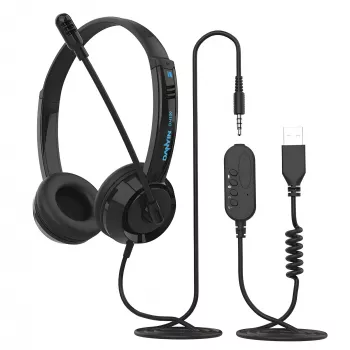
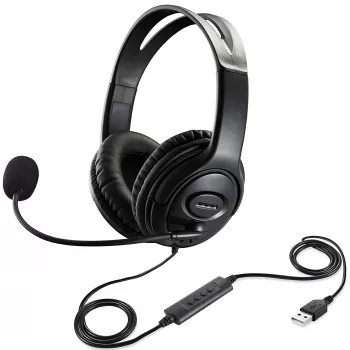
If you want a simple, ready-to-go option for calls, the USB & 3.5mm Wired Headset with Microphone is built for everyday communication where reliability matters more than flashy features.
- Product: USB & 3.5mm Wired Headset with Microphone
- Best for: video meetings, voice calls, online classes, help-desk style communication
- Wired reliability: stable connection, no charging required
- Check the product page for current price and availability
USB vs 3.5mm audio: what changes day to day
Both connection types can sound good, but they behave differently in real-world setups—especially when you’re moving between devices.
- USB audio typically uses the computer’s USB audio driver (often plug-and-play) and can bypass noisy analog headphone jacks
- 3.5mm analog is broadly compatible but depends on the device’s built-in sound card and port quality
- Some laptops use a single 3.5mm combo jack (headset), while older desktops may have separate mic and headphone ports
- If a device has limited ports, USB can be easier than juggling mic/headphone splitters
Connection choice checklist
| Scenario | Use USB when… | Use 3.5mm when… |
|---|---|---|
| Work laptop for meetings | You want plug-and-play mic selection and consistent volume control | USB ports are limited or blocked by docking accessories |
| Older desktop tower | Front USB ports are available and audio jacks are noisy | You have dedicated mic/headphone ports and prefer analog |
| Phone/tablet with a jack | You need call quality via a computer instead | The device accepts 3.5mm audio directly |
| Gaming controller/handheld | USB audio isn’t supported on that device | Controller has a 3.5mm headset port |
| Shared office hot-desk | You want a fast setup with minimal settings changes | The station is locked down and only allows analog audio |
Microphone and call clarity essentials
A good mic setup is often less about “upgrading” and more about small adjustments that make speech clearer for the people listening.
- Positioning matters: aim the mic toward the corner of the mouth to reduce breathing pops and harsh “P” sounds
- Noise reduction expectations: wired mics can reduce interference, but room echo still depends on your environment
- Mute behavior: confirm the meeting app shows the correct input device and test mute before live calls
- Practical tip: lower mic gain slightly if teammates hear keyboard clicks, then move the mic a bit closer to keep speech full
Comfort for long sessions
Comfort becomes the deciding factor once you start wearing a headset for hours. Small details—pressure, heat, and cable routing—can make the difference between “fine for a call” and “fine for a shift.”
- Fit and pressure: a comfortable headband and ear padding help during multi-hour classes or work blocks
- Heat management: closed designs isolate better but can feel warmer over time; short breaks help during long meetings
- Cable management: route the cable behind the desk edge to prevent tugging and accidental disconnects
- Hygiene: wipe ear pads and headband regularly for shared or daily use
Compatibility notes to check before buying
Dual-connection helps, but it doesn’t magically solve every port situation. A quick compatibility check prevents the most common “why won’t my mic work?” moments.
For platform-specific help, consult authoritative guides like Apple Support (USB devices on Mac) and Microsoft Support (managing audio in Teams). For deeper background on the standard itself, the USB Implementers Forum is the official resource.
Setup and troubleshooting in minutes
Care, storage, and longevity
Where this headset fits best
More in-stock picks
- Your Smart Guide to Investing in Rural Real Estate | Digital eBook for Beginners & Investors | Rural Real Estate Investment Guide PDF Download
- Your Smart Start Checklist for Commercial Property Success – Commercial Property Investment Guide, eBook for New Investors, Digital Download
FAQ
Will the USB connection work without installing drivers?
In most cases, yes—modern operating systems typically recognize USB audio class devices automatically. On managed or locked-down workplace computers, you may still need to select the headset as the active input/output in system settings and within your meeting app.
Why does the microphone work on one device but not another with the 3.5mm plug?
Many laptops use a single combo (TRRS) headset jack, while some desktop PCs split mic and headphone into separate ports and may require a splitter for full functionality. Also confirm the plug is fully inserted, since a slightly loose connection can prevent the mic contact from engaging.
How can echo or background noise be reduced on calls?
Lower speaker volume, enable echo cancellation or noise suppression in your meeting app, and position the mic closer to your mouth so it can run at a lower gain. If the room is echoey, soft furnishings and closing doors can noticeably improve clarity.













Leave a comment